
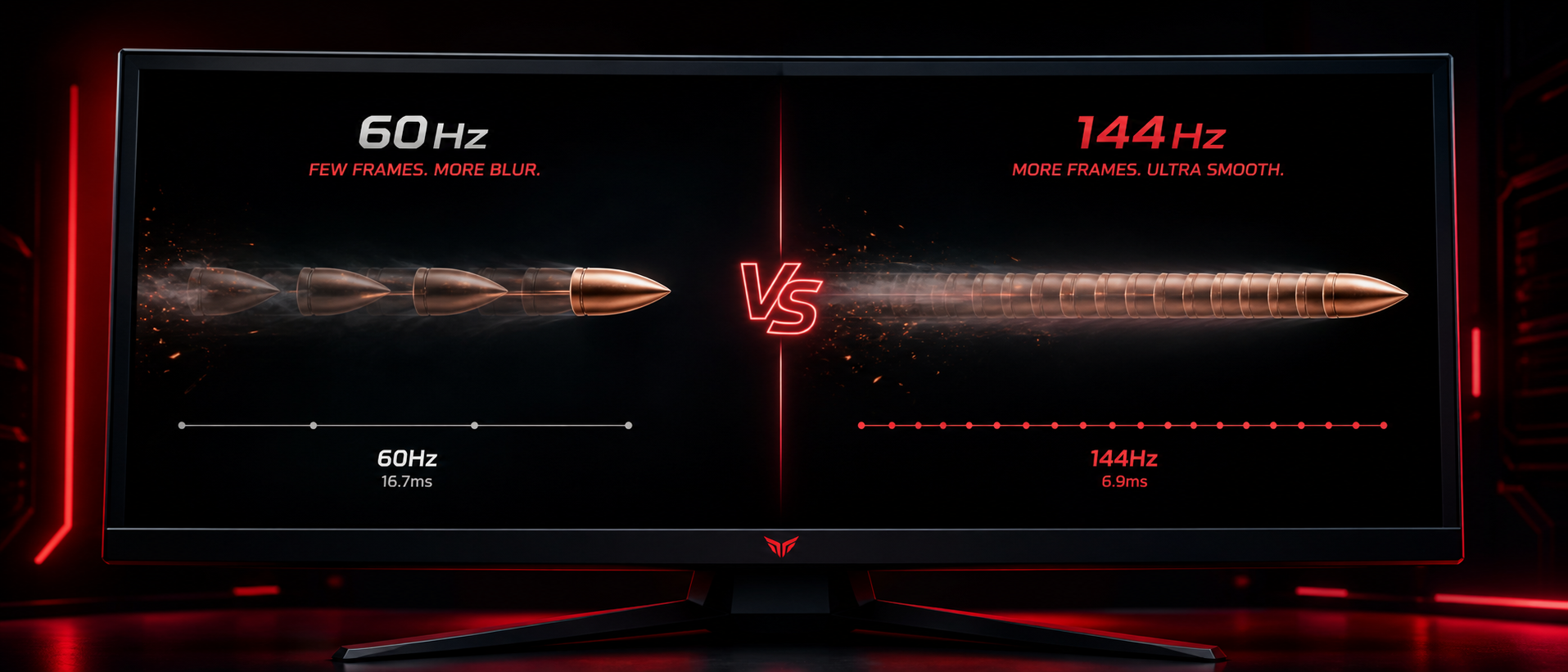
You're browsing gaming monitors on Amazon India. One says 60Hz for Rs 8,000. Another proudly claims 144Hz for Rs 12,000. A third screams "240Hz ESPORTS GRADE" for Rs 22,000. The number keeps going up, and so does the price. But is it actually worth it? And what does that "Hz" number even do?
Refresh rate is one of the most impactful specs for gaming — arguably more important than resolution for competitive players. The difference between 60Hz and 144Hz is genuinely visible to anyone with working eyes, and once you experience it, you literally cannot go back. Let's explain exactly why.
What Is Refresh Rate?
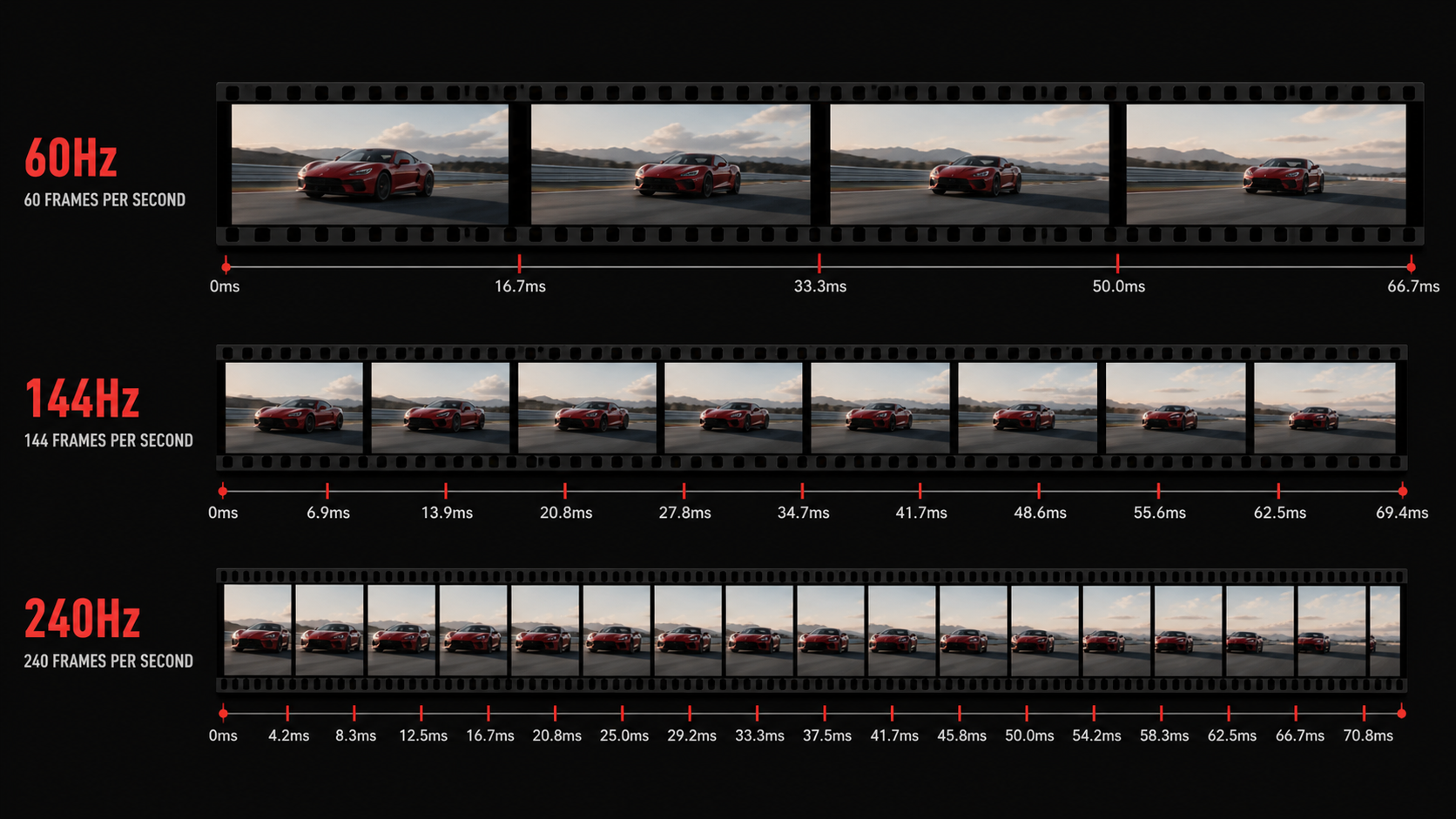
Refresh rate measures how many times per second your monitor updates the image on screen. It's measured in Hertz (Hz). A 60Hz monitor refreshes 60 times per second. A 144Hz monitor refreshes 144 times per second. A 240Hz monitor? You guessed it — 240 updates every second.
60Hz Monitor
Shows 60 unique images per second. Each frame stays on screen for ~16.67 milliseconds. Standard for office monitors and budget laptops.
144Hz Monitor
Shows 144 unique images per second. Each frame stays for ~6.94ms. The sweet spot for gaming — massive improvement over 60Hz that anyone can notice.
240Hz Monitor
Shows 240 unique images per second. Each frame stays for ~4.17ms. Targeted at competitive esports players who need every millisecond of advantage.
Think of it like a flipbook. A flipbook with 60 pages flipped per second creates motion, but you can still perceive individual "steps" in fast movement. A flipbook with 144 pages per second looks noticeably smoother. At 240 pages, the motion appears almost fluid. The more frames you show per second, the less your brain has to "fill in the gaps" between frames.
Why This Matters for Gaming
In a game like Valorant or CS2, enemies can peek a corner and disappear in under 200ms. At 60Hz, you only see ~12 frames during that peek. At 144Hz, you see ~29 frames. More frames = more visual information = better chance of reacting in time. It's not just about "smoothness" — it's about seeing more of what's happening.
How Refresh Rate Works
Your monitor's panel is made up of millions of pixels. Each "refresh" is the monitor redrawing every single pixel from top to bottom (or in some cases, all at once for OLED panels). The refresh rate determines how frequently this redraw cycle happens.
Here's the process in simplified steps:
GPU Renders a Frame
Your graphics card (GPU) calculates the game scene — geometry, lighting, textures, effects — and produces a complete frame image. This goes into a frame buffer.
Monitor Requests Next Frame
At each refresh interval (every 6.94ms for 144Hz), the monitor's scaler pulls the latest completed frame from the buffer and begins displaying it top-to-bottom.
Pixels Update
Each pixel transitions from its old colour to the new colour. How fast this happens is your monitor's response time (measured in ms) — a separate spec from refresh rate, but closely related.
Repeat
This cycle repeats 60, 144, or 240 times every second depending on your monitor's refresh rate. The faster the cycle, the more up-to-date the image on your screen is relative to what's happening in the game.
The key takeaway: refresh rate is the maximum number of unique frames your monitor can display per second. Even if your GPU renders 300 FPS, a 60Hz monitor can only show 60 of those frames. The rest are discarded (or cause tearing — more on that later).
Refresh Rate vs FPS (Frame Rate)
This is where most gamers get confused, so let's be crystal clear:
| Factor | Refresh Rate (Hz) | FPS (Frame Rate) |
|---|---|---|
| What it is | Monitor hardware spec | GPU output measurement |
| Measured in | Hertz (Hz) | Frames per second (FPS) |
| Controlled by | Monitor panel & settings | GPU power & game settings |
| Fixed or variable? | Fixed (unless VRR enabled) | Variable — changes constantly |
| What happens if mismatched? | Monitor can't show extra frames | Screen tearing or stuttering |
The golden rule: For the smoothest experience, you want your FPS to match or exceed your monitor's refresh rate. If you have a 144Hz monitor, aim for 144+ FPS in your game. If your GPU can only push 80 FPS, you're not fully utilizing that 144Hz panel — though it'll still feel smoother than 60Hz thanks to reduced frame persistence.
Real-World Example
You buy a 144Hz monitor for Rs 12,000 on Flipkart. You're running Valorant on a GTX 1650 and getting ~160 FPS on low settings. Perfect match — you'll see the full benefit of 144Hz. But then you try Cyberpunk 2077 and get 45 FPS. Now your 144Hz monitor is only showing 45 unique frames per second. The monitor refreshes 144 times, but many refreshes just repeat the same frame. You'd benefit from FreeSync here (we'll cover that below).
This is why competitive gamers often choose lower resolution (1080p) and lower graphics settings — they're prioritizing frame rate over visual fidelity. Getting 240+ FPS on a 240Hz monitor matters more to them than seeing ray-traced reflections at 50 FPS.
60Hz vs 144Hz vs 240Hz vs 360Hz — Compared
Let's put the numbers side by side so you can see exactly what each refresh rate tier offers:
| Spec | 60Hz | 144Hz | 240Hz | 360Hz |
|---|---|---|---|---|
| Frame Time | 16.67ms | 6.94ms | 4.17ms | 2.78ms |
| Frames in 200ms peek | 12 | 29 | 48 | 72 |
| Input lag reduction vs 60Hz | Baseline | ~10ms less | ~12.5ms less | ~13.9ms less |
| GPU needed (Valorant 1080p) | Any iGPU | GTX 1650 / RX 6500 XT | RTX 3060 / RX 6600 | RTX 4070 / RX 7700 XT |
| Price range (India, 1080p) | Rs 6,000–8,000 | Rs 9,000–14,000 | Rs 16,000–25,000 | Rs 30,000+ |
| Best for | Office / casual use | Most gamers | Competitive esports | Pro-level / diminishing returns |
| Noticeable upgrade from previous? | — | Massive | Noticeable | Subtle |
The big takeaway: The jump from 60Hz to 144Hz is by far the most impactful upgrade. It's the single best "bang for buck" improvement you can make to your gaming setup. Going from 144Hz to 240Hz is nice but far less dramatic. And 360Hz? That's purely for people who game competitively and have the GPU horsepower to push 360+ FPS consistently.
Screen Tearing, V-Sync & FreeSync/G-Sync
When your GPU's frame rate doesn't align with your monitor's refresh rate, you get visual artifacts. The most common one is screen tearing — a horizontal line across your display where the top half shows one frame and the bottom half shows the next frame.
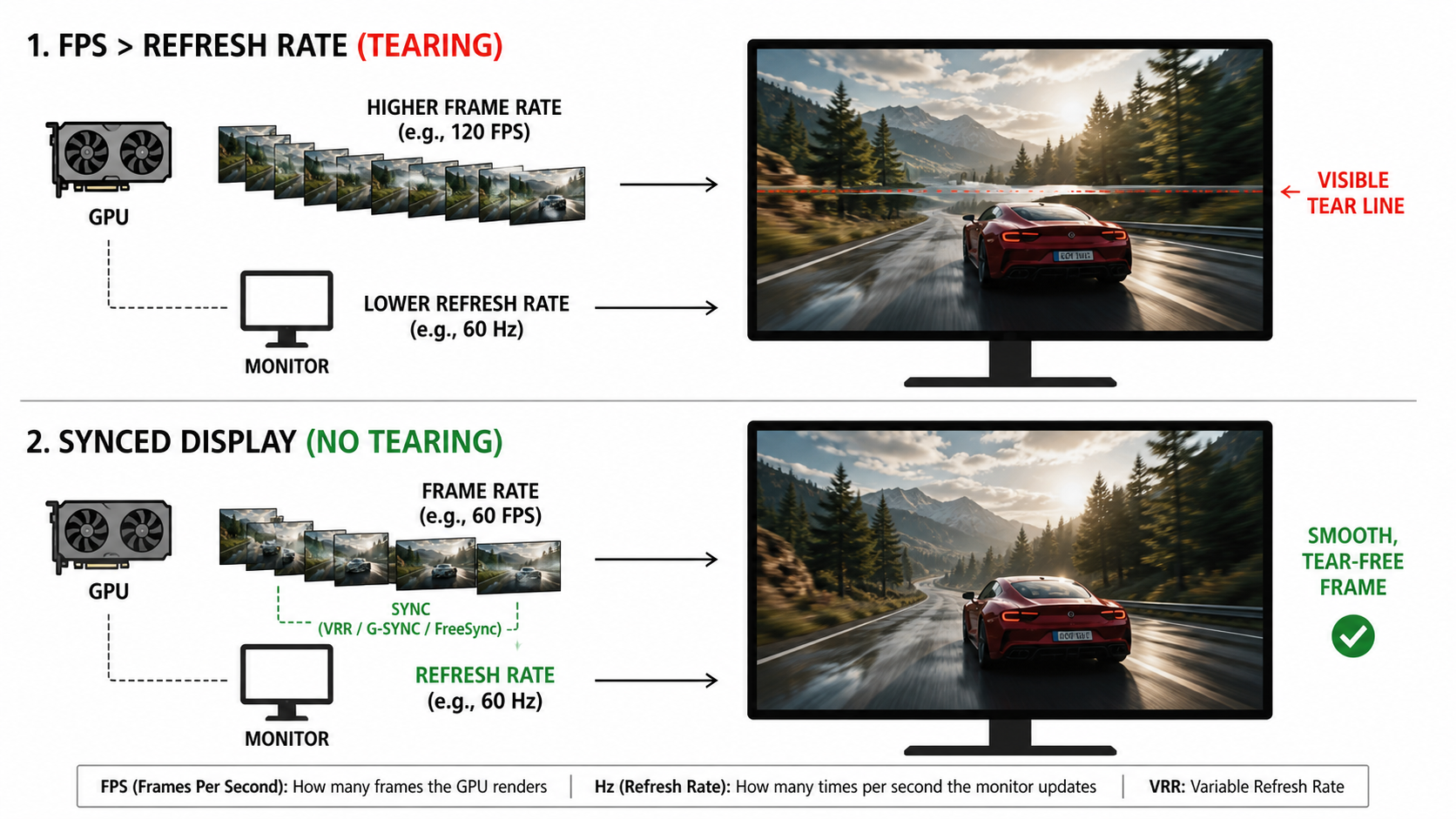
There are several solutions to this problem:
V-Sync (Vertical Synchronization)
What it does: Forces your GPU to wait for the monitor's refresh cycle before sending the next frame. Eliminates tearing completely.
The downside: Adds significant input lag (often 30-50ms+) because the GPU has to hold frames. If your FPS drops below the refresh rate, it halves to 30 FPS instead of gracefully degrading. Most competitive gamers play with V-Sync OFF.
AMD FreeSync (Adaptive Sync)
What it does: Makes the monitor dynamically adjust its refresh rate to match your GPU's current frame rate. If your GPU outputs 97 FPS, the monitor refreshes at 97Hz. No tearing, no extra input lag.
The upside: Free — no extra cost. Built into most gaming monitors sold in India (even budget Rs 10,000 ones). Works with AMD and most NVIDIA GPUs. Look for "FreeSync Premium" for the best experience with LFC (Low Framerate Compensation).
NVIDIA G-Sync (& G-Sync Compatible)
What it does: Same concept as FreeSync — variable refresh rate that matches GPU output. "G-Sync Ultimate" uses a dedicated hardware module in the monitor for the tightest sync. "G-Sync Compatible" is basically NVIDIA-certified FreeSync.
For Indian buyers: True G-Sync monitors are expensive (Rs 35,000+). Most budget and mid-range monitors are FreeSync + "G-Sync Compatible," which works great with NVIDIA GPUs. Don't pay a premium for the G-Sync hardware module unless you're buying a high-end 1440p/4K display.
Our Recommendation
For most gamers in India: buy a 144Hz FreeSync monitor, enable FreeSync in your monitor's OSD settings, and turn OFF V-Sync in your games. If you have an NVIDIA GPU, enable "G-Sync Compatible" in NVIDIA Control Panel. This gives you tear-free gaming with minimal input lag at the best price point.
The Diminishing Returns Problem
Here's a truth the marketing won't tell you: the perceptual benefit of higher refresh rate follows a curve of diminishing returns. Each jump gets less noticeable:
30Hz to 60Hz
Night and day difference. 30Hz feels like a slideshow once you've seen 60Hz. Frame time drops from 33.3ms to 16.67ms — a 16.67ms improvement.
60Hz to 144Hz
Massive, immediately obvious improvement. Everything feels buttery. Mouse movement in desktop and games becomes noticeably smoother. Frame time drops from 16.67ms to 6.94ms — a 9.73ms improvement.
144Hz to 240Hz
Noticeable if you're looking for it, especially in fast camera movements and flick shots. Frame time drops from 6.94ms to 4.17ms — only a 2.77ms improvement. You need trained eyes to spot this consistently.
240Hz to 360Hz
Barely perceptible for most humans. Frame time drops from 4.17ms to 2.78ms — a 1.39ms improvement. Only pro esports players who game 8+ hours daily on CRT-like response time monitors will notice this consistently.
The mathematics are simple: each doubling of refresh rate gives a smaller absolute improvement in frame time. Going from 60 to 120Hz saves 8.33ms. Going from 120 to 240Hz saves only 4.17ms. Going from 240 to 480Hz saves just 2.08ms. Your eyes (and brain) have a threshold below which differences become imperceptible, and for most people that threshold is somewhere around 144–240Hz depending on the content.
The practical advice: Unless you're playing Valorant or CS2 at a competitive level and your GPU can consistently push 240+ FPS, a 144Hz monitor is the optimal choice for value. Spend the money you save on a better GPU instead of a 240Hz panel you can't fully utilize.
What Refresh Rate Do You Actually Need?
This depends on two things: what games you play and what GPU you have. Here's our honest recommendation by game type:
Competitive FPS / Esports
Valorant, CS2, Fortnite, Apex Legends, Overwatch 2
These games are lightweight enough that even a mid-range GPU can push high FPS. Valorant runs at 200+ FPS on a GTX 1660 at 1080p low. The reduced input lag and smoother target tracking at 144Hz+ gives a genuine competitive advantage. If you're serious about ranked, 240Hz is worth it — but only if your GPU can deliver 240+ FPS consistently.
Battle Royale / Action Games
PUBG, Warzone, Fortnite (casual), Destiny 2
These games are more GPU-intensive than pure esports titles. You'll likely hover between 100–144 FPS on medium settings with a mid-range GPU. 144Hz with FreeSync is the sweet spot — smooth enough for good gameplay without requiring a top-tier GPU.
Single-Player / Story Games
Elden Ring, Cyberpunk 2077, God of War, Hogwarts Legacy
These graphically demanding games often struggle to hit 60 FPS even on powerful GPUs (especially at 1440p/4K). You're usually choosing between resolution + eye candy vs frame rate. A 144Hz monitor with FreeSync ensures smooth gameplay even when FPS dips to 50-80. Anything above 144Hz is overkill here.
MOBA / Strategy
Dota 2, League of Legends, Age of Empires IV, Civilization VI
MOBAs benefit from smoother cursor movement and camera panning at 144Hz, but reaction time advantages are less critical than in FPS games. 60Hz works perfectly fine for these genres — upgrade to 144Hz for comfort, not competitive advantage.
Matching Your GPU to Your Monitor
Buying a 240Hz monitor with a GPU that can only push 80 FPS is like buying a sports car and driving it in first gear. Here's a realistic GPU-to-monitor pairing guide based on current Indian market prices (as of 2026):
| GPU (Price in India) | Valorant / CS2 | Fortnite / Apex | Monitor Match |
|---|---|---|---|
| GTX 1650 / RX 6500 XT (Rs 10,000–13,000) | 150–200 FPS | 60–90 FPS | 144Hz |
| RTX 3060 / RX 6600 (Rs 18,000–22,000) | 300+ FPS | 120–160 FPS | 144Hz–240Hz |
| RTX 4060 Ti / RX 7600 XT (Rs 25,000–32,000) | 400+ FPS | 160–220 FPS | 240Hz |
| RTX 4070 / RX 7800 XT (Rs 40,000–48,000) | 500+ FPS | 200–280 FPS | 240Hz–360Hz |
| RTX 4080 / RX 7900 XT (Rs 65,000–80,000) | 600+ FPS | 280–360 FPS | 360Hz |
Budget tip for Indian gamers: If you're building a Rs 50,000–60,000 gaming PC (which is the most common budget range in India), your GPU is likely an RTX 3060 or RX 6600 level. Pair that with a 144Hz FreeSync monitor (Rs 10,000–12,000 from brands like Acer Nitro, LG UltraGear, or BenQ MOBIUZ). This is the absolute sweet spot for price-to-performance.
Don't make the mistake of spending Rs 25,000 on a 240Hz monitor and only Rs 15,000 on a GPU. Your money is better spent on a faster GPU + 144Hz monitor than a slower GPU + 240Hz monitor. The GPU is the bottleneck, not the display.
Don't Forget: Enable 144Hz in Windows!
A shocking number of gamers buy a 144Hz monitor and forget to change the refresh rate in Windows Display Settings. By default, Windows often sets it to 60Hz. Go to Settings → System → Display → Advanced display → Choose a refresh rate → select 144Hz. Also check your in-game settings — many games default to 60Hz or "desktop refresh rate."
Frequently Asked Questions
Is 144Hz good enough for gaming in 2026?
Can I get 144Hz if my GPU only pushes 100 FPS?
Does refresh rate affect input lag?
What's the difference between refresh rate and FPS?
Is 240Hz worth it over 144Hz?
Do I need a special cable for 144Hz?
The Bottom Line
TL;DR
Refresh rate is how many times per second your monitor updates the picture. Higher Hz = smoother motion, less input lag, and better target tracking in games. The jump from 60Hz to 144Hz is the single most impactful gaming upgrade you can make — more noticeable than resolution bumps, RGB lighting, or fancy peripherals.
For most Indian gamers: buy a 144Hz FreeSync monitor (Rs 10,000–14,000 range — Acer Nitro VG240YS, LG 24GS60F, or BenQ MOBIUZ EX2510S are great options on Amazon/Flipkart). Make sure your GPU can push the frames to match. Enable FreeSync, disable V-Sync, and set 144Hz in Windows display settings.
Don't chase 360Hz unless you're gaming competitively at a high level with a beefy GPU to match. The diminishing returns past 144Hz aren't worth the premium for 95% of gamers. Spend that money on a better GPU instead — that's what actually gets you more frames.
SOURCES & REFERENCES
Our recommendations are based on research, comparison, and analysis — we don’t physically test products. The technical claims on this page are backed by the standards bodies and published research below.
- 1.
Related Guides
Best Gaming Monitors Under Rs 10,000
Budget 144Hz picks that actually deliver
Best Gaming Monitors Under Rs 20,000
1440p and 240Hz options in the mid-range
60Hz vs 144Hz — Is It Worth Upgrading?
Side-by-side comparison with real-world examples
What Is Response Time? (1ms vs 4ms Explained)
The other half of the smoothness equation