
You've probably seen "1000Hz polling rate" on the spec sheet of every gaming mouse you've looked at on Amazon India. Some newer, premium mice even advertise 4000Hz or 8000Hz. But what does polling rate actually mean? Does it make your clicks register faster? Will a higher number give you an edge in Valorant or CS2?
Let's break it down from the basics. By the end of this guide, you'll know exactly what polling rate does, how it affects your gaming experience, and whether you should spend extra money chasing higher numbers.
What Is Polling Rate?
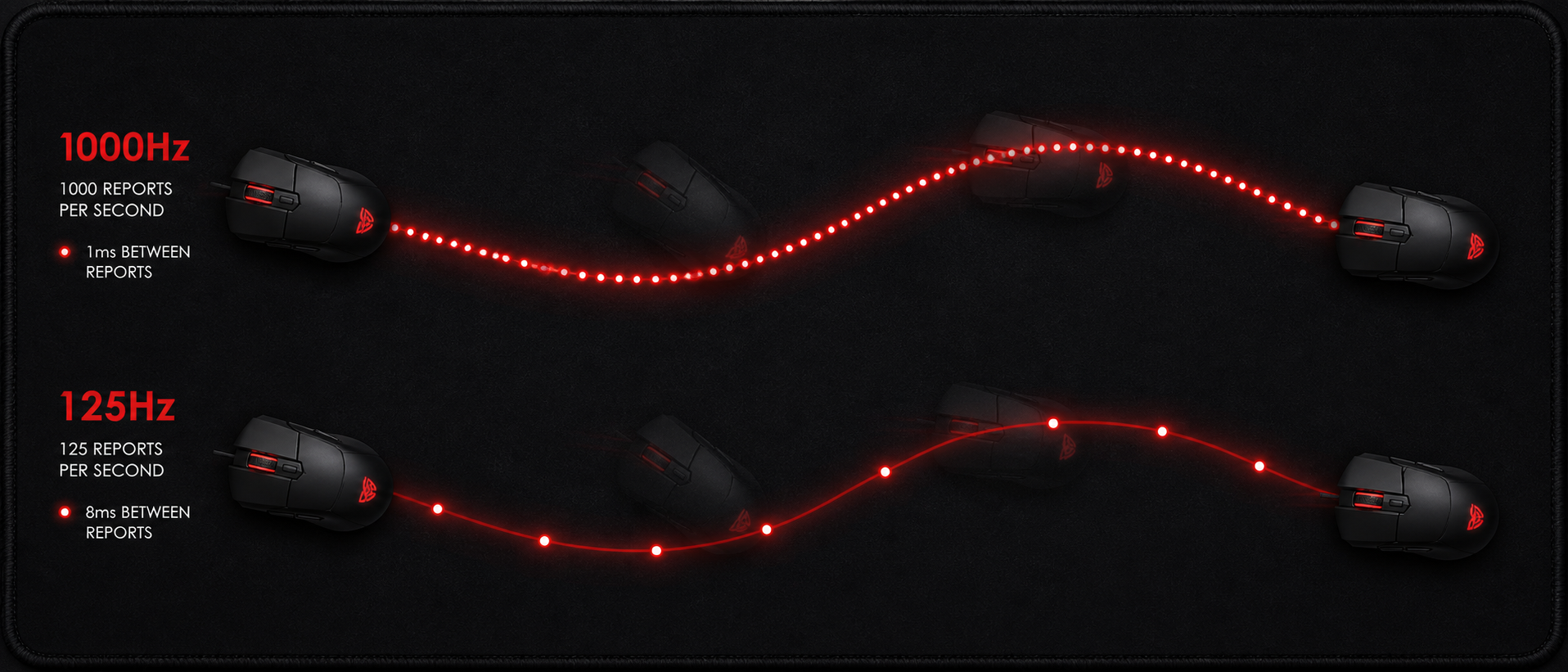
Polling rate is how often your mouse reports its position to your computer, measured in Hertz (Hz). Think of it as the mouse raising its hand and saying "Hey PC, here's where I am now!" a certain number of times per second.
At 125Hz
The mouse reports its position 125 times per second. That's once every 8 milliseconds. Common on office mice and very old gaming mice.
At 1000Hz
The mouse reports its position 1,000 times per second. That's once every 1 millisecond. The standard for gaming mice since 2015.
At 4000Hz
The mouse reports its position 4,000 times per second. That's once every 0.25 milliseconds. Found on premium mice like Razer Viper V3 Pro and Lamzu Atlantis Mini 4K.
The key thing to understand: higher polling rate = less delay between your hand movement and the cursor moving on screen. But unlike DPI (which we cover in our DPI explainer), the difference is measured in tiny fractions of milliseconds — not something you'll "feel" the same way you feel a DPI change.
Quick Analogy
Imagine you're on a phone call telling your friend where you're standing in a room. At 125Hz, you tell them your position 125 times a second — they get a fairly choppy picture of your movement. At 1000Hz, you tell them 1,000 times a second — they can track your movement much more smoothly. The actual speed you walk doesn't change — just how often the update arrives.
How Polling Rate Works
Your computer's USB controller periodically "asks" your mouse: "Hey, has anything changed?" The mouse responds with its current position delta (how far it moved since the last check), button states, and scroll wheel data. This ask-and-respond cycle is called USB polling.
At 1000Hz, this conversation happens 1,000 times per second. The mouse doesn't push data whenever it wants — it waits to be asked. This is why polling rate is set from the host side (your computer) based on the device's USB HID descriptor, though gaming mice override this via their firmware and drivers.
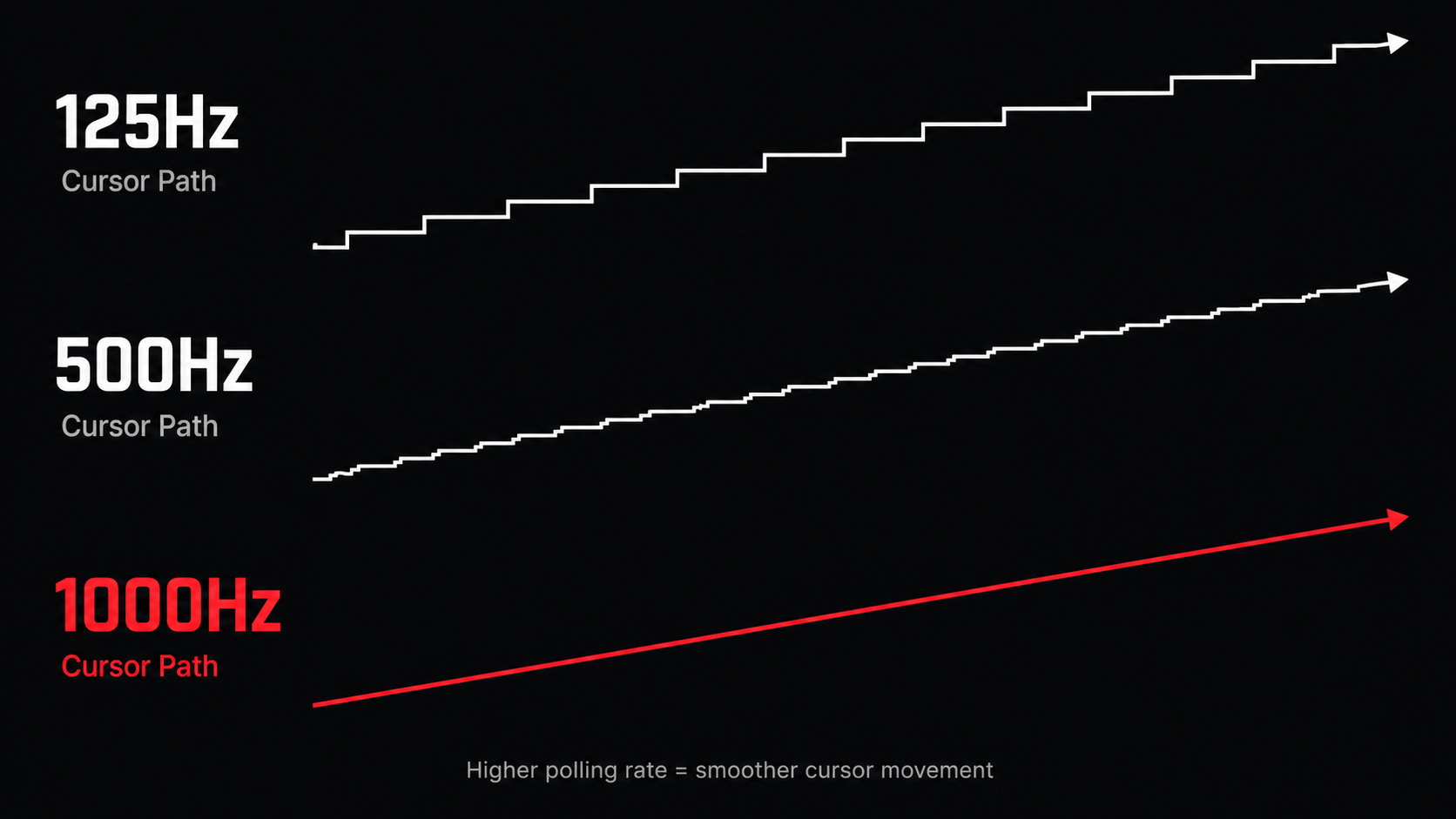
The visual difference is most obvious when drawing slow diagonal lines. At 125Hz, you'll see a staircase pattern. At 1000Hz, the line is essentially smooth. In gaming, this translates to smoother crosshair tracking when turning or making diagonal movements.
You move your mouse
The sensor tracks the movement continuously using its optical/laser sensor (at its own internal tracking rate, often 10,000+ frames per second).
USB poll arrives
At the next polling interval (every 1ms at 1000Hz), the computer asks the mouse for data.
Mouse reports accumulated movement
The mouse sends all the movement data it's gathered since the last poll — X delta, Y delta, button states, and scroll data.
OS processes and updates the screen
Windows/Linux processes the mouse data, updates cursor position, and the game engine applies the movement on the next frame render.
125Hz vs 500Hz vs 1000Hz — The Numbers
Let's put the three most common polling rates side by side. This table tells you everything you need to know at a glance:
| Polling Rate | Response Time | Reports/Second | Typical Use | Found On |
|---|---|---|---|---|
| 125Hz | 8ms | 125 | Office / Basic use | Office mice, wireless budget mice |
| 500Hz | 2ms | 500 | Casual gaming | Some wireless mice to save battery |
| 1000Hz | 1ms | 1,000 | Competitive gaming | Logitech G102, Razer DeathAdder, HyperX Pulsefire |
| 4000Hz | 0.25ms | 4,000 | Pro / Enthusiast | Razer Viper V3 Pro, Lamzu Atlantis 4K, Finalmouse |
The takeaway: Going from 125Hz to 1000Hz is a massive, noticeable improvement (8ms to 1ms — you're removing 7ms of potential input delay). Going from 1000Hz to 4000Hz saves you just 0.75ms — something only the most elite players might perceive, and only on very high refresh rate monitors (240Hz+).
Polling Rate & Input Lag
Input lag is the total delay between you moving your mouse and seeing the result on screen. It's made up of several components:
Mouse sensor processing
~1ms on modern sensors (PixArt 3395, HERO 2, Focus Pro 30K)
USB polling interval (THIS is what polling rate affects)
Average wait: half the polling interval. At 1000Hz = 0.5ms average. At 125Hz = 4ms average.
Game engine processing
Depends on your FPS. At 144fps = ~7ms frame time. At 60fps = ~16.7ms.
Monitor display lag
Depends on your monitor's response time and refresh rate. A 144Hz monitor = ~7ms between frames.
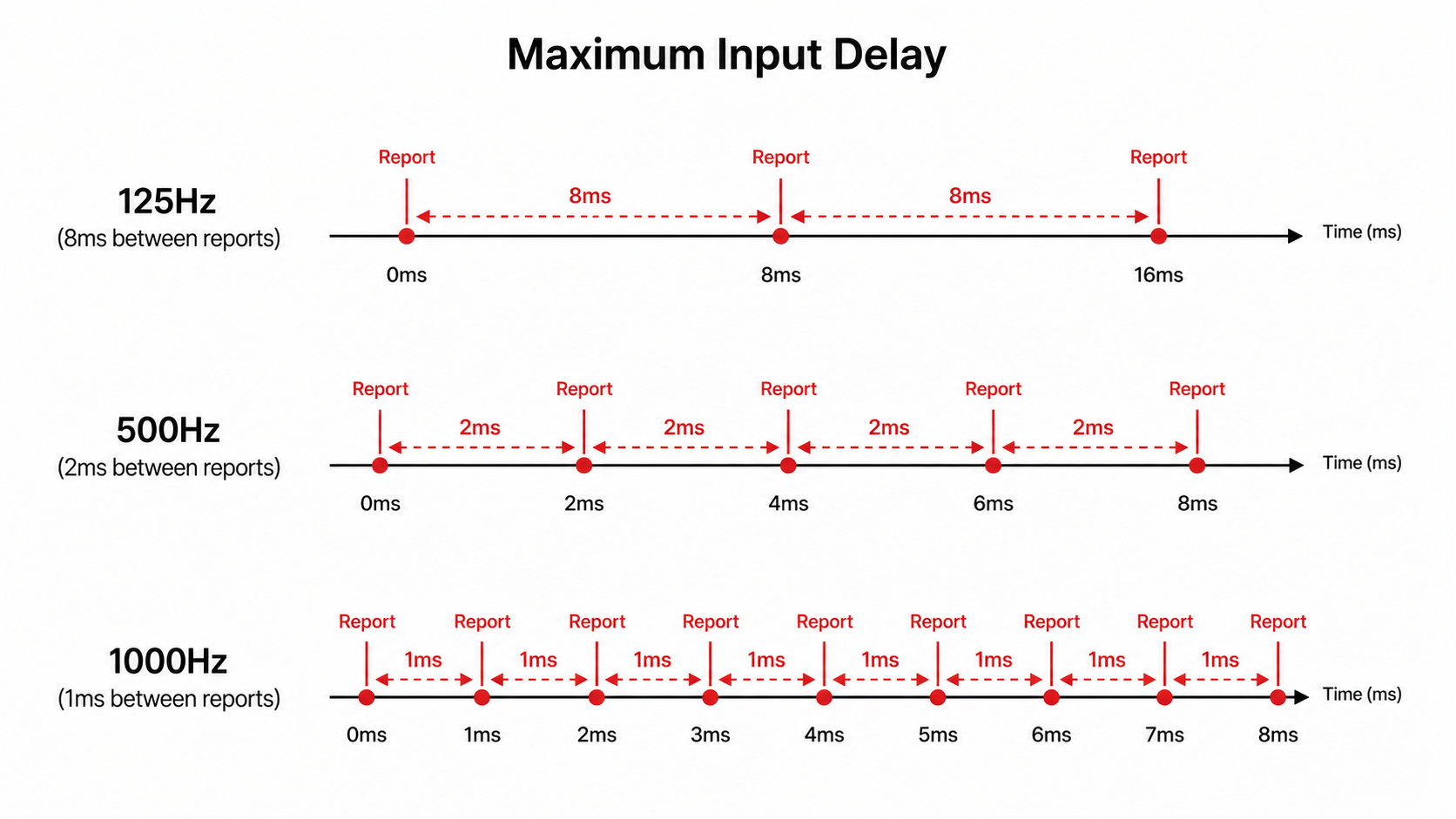
Here's the important perspective: if your total input lag chain is around 30–50ms (which is typical for a 144Hz setup), the difference between 1000Hz and 4000Hz polling saves you 0.75ms. That's roughly 1.5–2.5% of your total input lag. Not nothing — but not the game-changer marketing wants you to believe.
However, going from 125Hz to 1000Hz? That removes up to 7ms from your chain — which IS significant and noticeable. If you're still gaming at 125Hz, upgrading your polling rate should be priority number one.
Is 4000Hz Polling Worth It?
In 2025–2026, several premium gaming mice launched with 4000Hz and even 8000Hz polling rates. In India, these include:
Razer Viper V3 Pro (4000Hz)
~Rs 13,000–15,000 on Amazon India
Razer DeathAdder V3 HyperSpeed (via dongle, 4000Hz)
~Rs 12,000–14,000
Lamzu Atlantis Mini 4K (4000Hz)
~Rs 10,000–12,000 (imported, limited availability)
Finalmouse UltralightX (8000Hz)
~Rs 15,000+ (imported, hard to find in India)
The honest answer: For 99% of gamers in India, 4000Hz is not worth the premium. Here's why:
You need a 240Hz+ monitor to even see the benefit
On a 144Hz monitor (the most common gaming monitor in India), you're getting a new frame every 6.9ms. Whether your mouse reported 1ms or 0.25ms ago is irrelevant when the frame you're looking at is already 6.9ms old. You need at least 240Hz — preferably 360Hz+ — to perceive the difference between 1000Hz and 4000Hz polling.
The improvement is sub-millisecond
We're talking about saving 0.75ms. Human reaction time averages 150–200ms. The variance in your own reaction time from one click to the next is probably 20–30ms. In that context, 0.75ms is noise — not signal.
Higher polling rate = more CPU usage
Processing 4,000 or 8,000 USB packets per second isn't free. On budget/mid-range builds common in India (Ryzen 5 5600, i5-12400F), this can cause micro-stutters in CPU-intensive games. We'll cover this in the next section.
When it IS worth it: If you're an aspiring professional playing on a 360Hz monitor with a high-end CPU (Ryzen 7 7800X3D or better), play at 300+ FPS consistently, and have already optimized everything else in your setup — then yes, 4000Hz is a legitimate (tiny) advantage. But that's a very specific, expensive setup.
CPU Usage & Performance Impact
Every time your mouse reports its position, your CPU has to process that data. At 1000Hz, that's 1,000 interrupt requests per second — trivial for any modern CPU. But at 4000Hz or 8000Hz, you're asking the CPU to handle 4x–8x more USB interrupts.
| Polling Rate | CPU Overhead | Impact on Budget PCs | Impact on High-End PCs |
|---|---|---|---|
| 125Hz | Negligible | None | None |
| 1000Hz | ~0.1–0.3% | None | None |
| 4000Hz | ~1–2% | Possible micro-stutters | Negligible |
| 8000Hz | ~2–4% | Noticeable frame drops | Minor in heavy scenes |
For Indian gamers on budget builds (which is most of us — a Ryzen 5 5600 + RTX 3060/4060 is the sweet spot here), stick with 1000Hz. It's the perfect balance of low latency and zero performance impact. If you upgrade to 4000Hz with a budget CPU, you might actually lose frames in CPU-bound scenarios — defeating the purpose entirely.
Pro Tip: Test Before You Commit
If your mouse supports 4000Hz, try it — but monitor your frame times with a tool like CapFrameX or the in-game FPS counter. If you see increased 1% lows or frame time spikes, drop back to 1000Hz. The latency savings aren't worth inconsistent frame delivery.
How to Check & Change Your Polling Rate
Not sure what polling rate your mouse is running at? Here are the easiest ways to find out and change it:
Online Polling Rate Checker
Visit zowie.benq.com/en-us/support/mouse-rate-checker.html or search "mouse rate checker" — move your mouse rapidly in circles and the tool will display your actual reporting rate. Free, no download required.
Mouse Companion Software
Open your mouse's software — Logitech G Hub, Razer Synapse, SteelSeries GG, or HyperX NGENUITY. Look for a "Performance" or "Polling Rate" setting. Most gaming mice let you switch between 125/250/500/1000Hz here.
Windows Device Manager (Advanced)
For USB mice without software, you can sometimes adjust polling rate through registry edits or third-party tools like hidusbf. However, this is risky and not recommended for beginners. Better to just buy a mouse with proper software support.
Popular gaming mice in India and their polling rate options:
| Mouse | Price (Approx) | Max Polling Rate | Software |
|---|---|---|---|
| Logitech G102 Lightsync | Rs 1,200–1,500 | 1000Hz | Logitech G Hub |
| Razer DeathAdder Essential | Rs 1,500–1,800 | 1000Hz | Razer Synapse |
| Redgear A-20 | Rs 700–900 | 1000Hz | Built-in DPI button |
| Logitech G304/G305 | Rs 3,000–3,500 | 1000Hz | Logitech G Hub |
| Logitech G Pro X Superlight 2 | Rs 10,000–12,000 | 2000Hz | Logitech G Hub |
| Razer Viper V3 Pro | Rs 13,000–15,000 | 4000Hz | Razer Synapse |
As you can see, every gaming mouse above Rs 1,000 in India already supports 1000Hz polling. You don't need to spend a premium to get it. The jump to 4000Hz is where prices climb significantly.
What Polling Rate Do You Actually Need?
Let's cut through the marketing and give you practical recommendations based on your actual gaming setup:
Casual Gaming on 60Hz Monitor
Single-player, story games, casual multiplayer
At 60Hz, your monitor refreshes every 16.7ms. Even 500Hz (2ms) is far faster than your display can show. 1000Hz is standard on any gaming mouse worth buying, so just set it and forget it. No need to overthink this.
Competitive Gaming on 144Hz
Valorant, CS2, Apex Legends, Fortnite ranked
1000Hz is the standard and all you need. At 144Hz, your frame time is ~7ms. The 1ms polling interval is already 7x faster than your display refresh. You're not the bottleneck here. Focus on getting consistent 144+ FPS instead of chasing higher polling rates.
Pro / Enthusiast on 240Hz–360Hz
Tournament play, semi-pro grinding, max responsiveness
At 360Hz (2.8ms frame time), higher polling rates start to matter slightly more. If you have a high-end CPU that won't bottleneck, 4000Hz can provide marginally smoother tracking. But only invest in this after you've already optimized everything else — monitor, GPU, mousepad, and your actual skill.
Bottom Line for Indian Gamers
If you're buying a gaming mouse in India between Rs 1,000 and Rs 5,000 — which covers the Logitech G102, G304, Razer DeathAdder Essential, and HyperX Pulsefire Haste — you're already getting 1000Hz polling. That's all you need for 144Hz competitive gaming. Don't let anyone tell you that you need to spend Rs 13,000+ on a 4000Hz mouse to be competitive.
Frequently Asked Questions
What polling rate should I use for gaming?
Does polling rate affect FPS or game performance?
Is 125Hz polling rate bad for gaming?
How do I check my mouse polling rate?
Can I change polling rate on any mouse?
Is 4000Hz polling rate worth it for Valorant?
The Bottom Line
TL;DR
Polling rate determines how often your mouse talks to your PC. Higher = less input delay. But the real-world difference between 1000Hz and 4000Hz is just 0.75 milliseconds — invisible to 99% of gamers.
For most Indian gamers: 1000Hz is all you need. Every decent gaming mouse above Rs 1,000 already supports it. The Logitech G102 (Rs 1,200), Razer DeathAdder Essential (Rs 1,500), and Logitech G304 (Rs 3,000) all poll at 1000Hz. You don't need to spend Rs 13,000+ on a 4000Hz mouse.
The biggest upgrade is going from 125Hz (office mouse) to 1000Hz (any gaming mouse). That alone removes up to 7ms of input lag. If you're still using a non-gaming mouse for competitive games — that's the real problem to fix, not whether you need 4000Hz.
Spend your money on a good mousepad, a 144Hz monitor, and aim training. Those will improve your gameplay infinitely more than an extra 0.75ms of polling speed.
SOURCES & REFERENCES
Our recommendations are based on research, comparison, and analysis — we don’t physically test products. The technical claims on this page are backed by the standards bodies and published research below.
- 1.
Related Guides